Build forms with your AI assistant
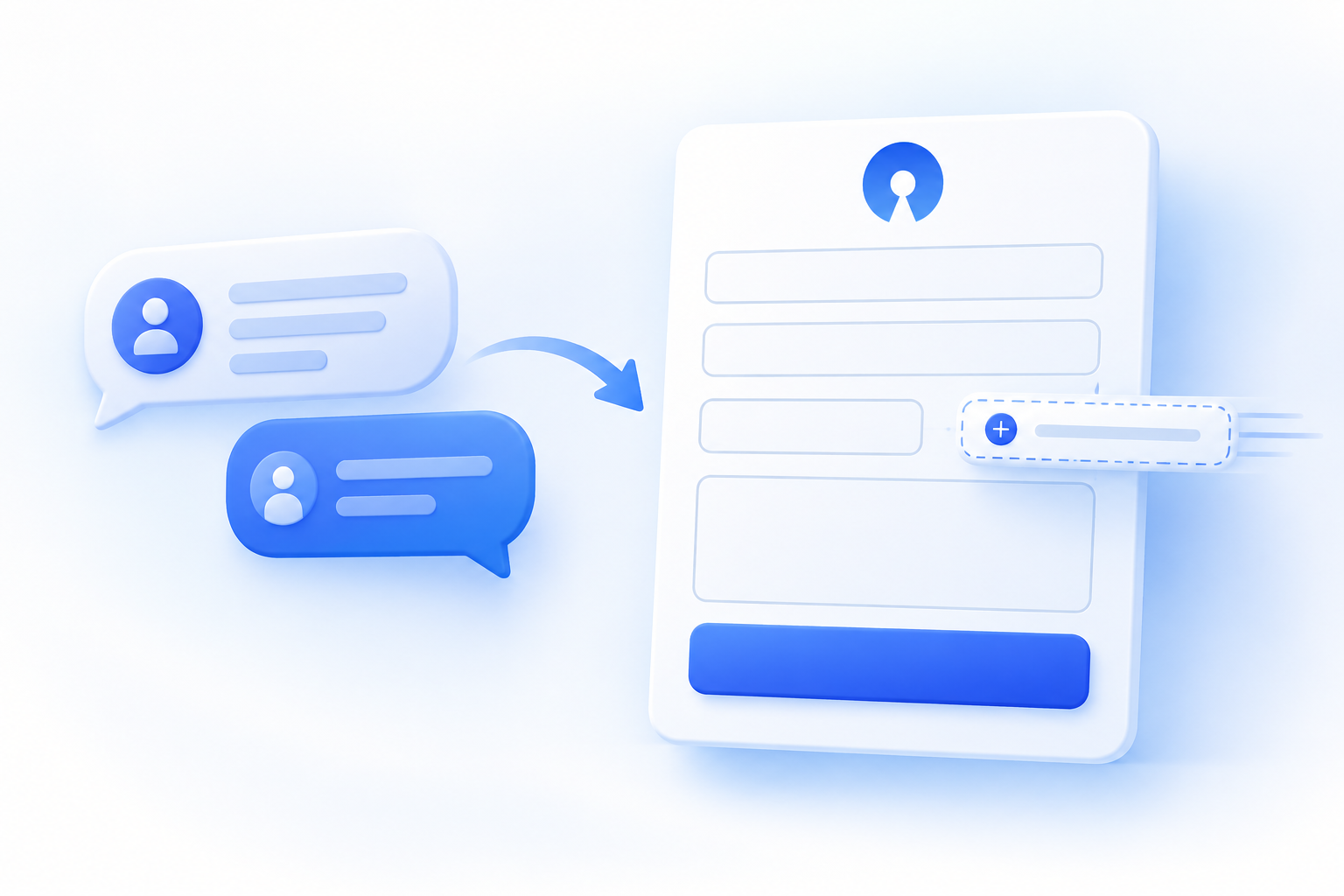
Describe the form you need, preview it, and refine it with your AI assistant before anything goes live.
OpnForm’s MCP integration lets compatible AI assistants create and edit forms through a conversation. Start with a private draft on OpnForm Cloud, then open it in the visual editor when you are ready to save and publish.
What you can do
- Create a private draft and review its preview without an OpnForm account on Cloud.
- Add or revise questions, conditional display rules, and calculated values through the conversation.
- Continue in OpnForm’s visual editor to adjust the design and finish your form.
- Connect your account to find, create, update, publish, or move forms to trash within your workspace permissions.
- Search responses, summarize submission data, and generate a private CSV export without modifying the original responses.
You stay in control: saving a new form does not publish it. Publishing or moving a form to trash through the assistant requires explicit confirmation. Your existing workspace permissions and plan limits still apply.
How to use it
Connect a compatible assistant using Settings → MCP & AI agents. Try “Create a contact form with Name, Email and Message,” then “Add an optional Phone number field.” In the ChatGPT preview, choose Edit in OpnForm. Click Save to my account, choose your workspace, and Save draft. Review the form before publishing it in OpnForm.
Good to know
- Cloud users can create private guest drafts before signing in. Connect through OAuth for account and submission tools; never paste your password into the conversation.
- Self-hosted administrators must enable MCP first. Self-hosted connections require authentication and do not offer guest drafts.
- Preview presentation depends on your AI client. ChatGPT custom MCP access depends on its plan and workspace settings.
Get started
Connect OpnForm to your AI assistant — step-by-step guide
Read the MCP documentation for Cloud and self-hosted OpnForm