Add Audio Blocks to Your Forms
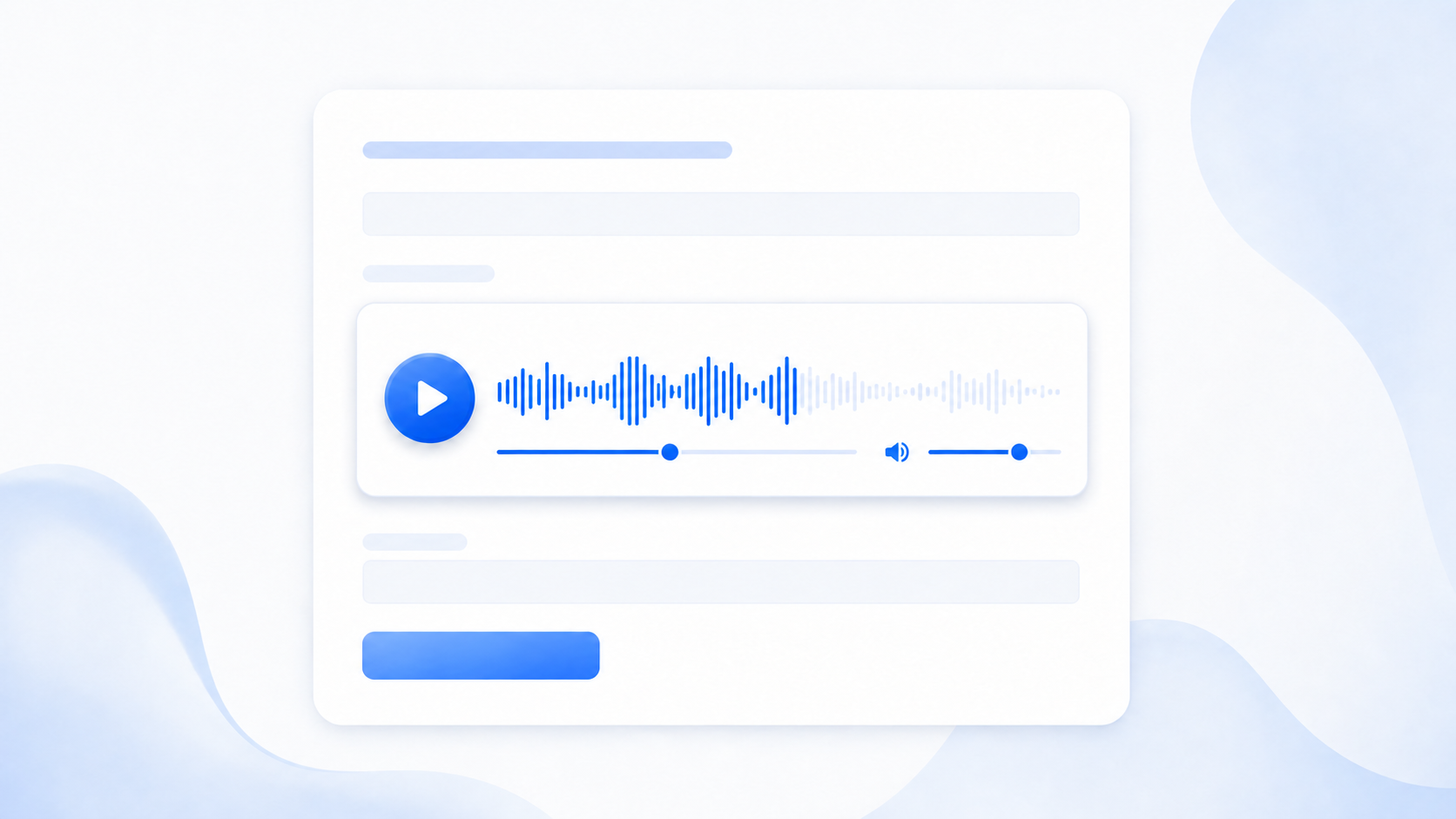
You can now add an audio player directly to an OpnForm form. Upload an audio file or paste a direct audio URL, then let respondents play it without leaving the form.
Audio is useful for voice instructions, spoken questions, testimonials, lessons, and any form where listening gives people better context before they answer.
How to use it
Open a form in the editor and add an Audio block.
Select the block, then open its settings.
Choose Upload to add an audio file, or URL to paste a direct audio link.
Publish the form: respondents can play, seek through, and mute the audio directly in the block.
Good to know
The player fills the width of the block and follows the form's alignment and visual theme.
You can use MP3, WAV, OGG, M4A, AAC, or WebM audio files up to 5 MB.
Audio blocks are display-only: they do not collect a response and can be shown or hidden with form logic.